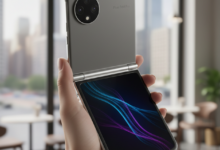
The Samsung Galaxy S26 series has landed, a flurry of impressive upgrades in tow. Privacy Display, enhanced performance, cutting-edge camera tech – there’s much to celebrate. Yet, amidst all the shiny newness, Samsung made a curious decision. It shipped the device with one of its most potent notification management tools – notification categories – turned off by default. For those of us constantly battling notification fatigue, this is a glaring missed opportunity. An endless barrage of pings? Not anymore. Reclaiming control over your Galaxy S26 app alerts is surprisingly simple. Your digital peace is just a few taps away.
The Galaxy S26’s Notification Conundrum: Why Defaults Dictate Your Digital Life
Let’s be real: in our hyper-connected world, smartphone notifications often feel less like helpful nudges and more like an unending torrent. Every app, it seems, clamors for your attention, often with dozens of distinct alert types. Imagine a fire alarm that blares for both a minor kitchen spill and a raging inferno. That’s your phone without notification categories. This ingenious feature allows you to categorize these alerts, granting granular control. Instead of an all-or-nothing approach for an entire app, you decide which specific types of notifications from that app deserve your immediate attention – and which simply don’t. So, why would Samsung keep such a powerful feature tucked away, hidden in plain sight?
It’s a genuine head-scratcher. While the Galaxy S26 boasts numerous user-centric innovations, this particular default setting feels like a significant oversight. It can quickly lead to a frustrating, overwhelming user experience. You bought a premium device for a premium experience, not a constant digital assault. Thankfully, a few taps can transform this chaos into calm.
Notification Categories: Your Secret Weapon for Digital Well-Being
Think about your favorite social media app. You absolutely need alerts for direct messages. But perhaps you couldn’t care less about ‘likes’ on old posts, or suggestions for new friends, or those endless ‘someone you may know’ pings. Without notification categories, you’re often forced into an impossible choice: silence the app entirely and risk missing crucial messages, or endure every single ping, good or bad. It’s like having only two volume settings: off or full blast. Notification categories offer a precise equalizer.
Enabling notification categories on your Galaxy S26 empowers you to:
- Reduce Clutter: Silence irrelevant alerts. Keep only what matters.
- Prioritize Effectively: Critical messages cut through the noise. Urgent updates reach you.
- Enhance Focus: Minimize distractions. Boost productivity, slash stress.
- Boost Digital Well-being: Take back control. Foster a healthier relationship with your smartphone.
This isn’t about the app developer’s default settings. It’s about tailoring your digital experience to *your* unique needs. This level of customization is precisely what modern smartphone users demand, especially from a flagship device like the Galaxy S26.
How to Easily Enable Notification Categories on Your Galaxy S26 (Step-by-Step)
Ready to bring sanity back to your notification tray? The process is remarkably straightforward. While exact wording might vary slightly across different Android versions or One UI updates, the general steps remain consistent. Here’s your simple guide:
- Open Settings: Tap the ‘Settings’ app icon on your Galaxy S26. It’s usually a gear icon.
- Navigate to Notifications: Scroll down and select ‘Notifications’. This is your control center.
- Access App Notifications: Tap on ‘App notifications’ or ‘See all apps’ to view a comprehensive list of all installed applications.
- Select an App: Choose the specific app you want to manage. For instance, pick ‘Messages’, ‘Gmail’, or your preferred social media app like Instagram.
- Find Notification Categories: Look for an option explicitly labeled ‘Notification categories’ or ‘In-app notification settings’. You might need to scroll down within the app’s notification settings to locate this crucial option.
- Toggle On/Off: Here, you’ll see a detailed list of different notification types for that app (e.g., ‘Direct Messages’, ‘Comments’, ‘Likes’, ‘Promotions’, ‘Account activity’). Simply toggle off the categories you don’t want to receive alerts from. Keep on the ones you do. It’s that simple.
- Repeat for Other Apps: Go back and repeat this process. Conquer any other apps currently overwhelming your digital space.
That’s it! Once these adjustments are made, you’ll immediately notice a calmer, more curated notification experience. It’s a small change. Its impact on your daily interaction with your Galaxy S26 is immense.
Beyond Categories: Master Your Galaxy S26 Notifications for Ultimate Control
Enabling notification categories is merely the first step. To truly master your Galaxy S26 and achieve optimal digital well-being, explore these other powerful notification-related features:
- Notification History: Ever accidentally swipe away an important alert? Your S26 likely has a notification history feature. Find it in ‘Settings’ > ‘Notifications’ > ‘Advanced settings’. It keeps a chronological log of all past alerts. Never miss a crucial update again.
- Do Not Disturb: Set custom schedules for when you want minimal interruptions. Ensure focused work blocks or undisturbed sleep. Total peace.
- Edge Lighting: For a more subtle, elegant visual cue, customize edge lighting for specific app alerts. Get a gentle glow without an intrusive sound or vibration.
Your Galaxy S26 is a powerful tool. With a little customization, you can ensure it serves *you*, rather than constantly demanding your attention. Don’t let default settings dictate your digital life. Take control. Enable those notification categories. Enjoy a more focused, peaceful, and productive smartphone experience. Your sanity will thank you.